


















A B2B Marketer’s Survival Guide to IMS and Administrator Roles
The Great Identity Shift: Navigating the Adobe Admin Console Fog
For B2B marketers who have built their world around Marketo Engage, the past two years have brought a wave of necessary, if sometimes bewildering, change. One of the most significant shifts has been the migration to Adobe Admin Console for Marketo. This migration is part of Adobe Identity Management System (IMS). IMS is the unified login framework that now spans the entire Adobe Experience Cloud portfolio.
This shift, while strategically sound for integrating Marketo into the broader Adobe ecosystem, has created a common operational pain point: user management. Specifically, many seasoned Marketo customers are finding it difficult to understand how to set up new users. Crucially, they also struggle with how to manage the layers of administrative rights within the new system. The complex, powerful, and often opaque Adobe Admin Console hierarchy now replaces the simple Marketo user roles we once knew.
If you’ve felt a sense of dread whenever a colleague asks to be added as an Admin, you are not alone. This challenge moves beyond mere technical setup; it touches on governance, security, and ultimately, your team’s ability to execute at speed.
This post, written specifically for Marketing Operations professionals, aims to demystify the Adobe Admin Console. It will also explain the hierarchy of administrator roles. Finally, it will equip you with the expert insights needed to secure your environment and streamline your operations.
Navigating the Adobe Admin Console Hierarchy
The Adobe Admin Console acts as the central control panel for all your Experience Cloud products, including Marketo Engage, Workfront, and Analytics. It’s where your organization’s identity, user access, and product licenses are managed. To master user management, you must first understand the flexible, multi-level administrative structure Adobe has established.
1. The Pyramid of Power: Understanding the Administrative Roles
Adobe defines a clear hierarchy that ensures accountability and prevents a single point of failure. While the structure is robust, the terminology can be confusing, so let’s break down the key administrative roles from top to bottom.
Global Control: The System Administrator (System Admin)
The Crown Jewel: The System Admin sits at the apex of the administrative hierarchy. They are the organization’s most powerful user and are the only individuals who can delegate overall administrative responsibilities. In many cases, for enterprise customers, this role manages identity, user accounts, and license distribution across the entire organization. For smaller teams, the contract owner often holds this role.
Crucial Insight: Finding Your System Admin: In the complex landscape of B2B organizations, especially those that have recently acquired Adobe products, identifying your System Administrator can be surprisingly difficult. This is a critical security layer: only System Administrators can see who the other System Administrators are. Adobe is understandably reluctant to share this information widely.
Product Administrator (Product Admin):
The Product Owner: System Admins delegate these administrators to manage product assignments for specific products, like Marketo Engage or Workfront. In addition, System Admins delegate these administrators to manage product assignments for specific products like Marketo Engage or Workfront.
Product Admins handle the high-level allocation of licenses and are often the first port of call for team leaders looking to onboard new members or adjust broad access permissions. Typically, the license is allocated through the Admin Console. However, detailed user permissions are managed inside the individual product like Marketo Engage or Workfront.
Product Profile Administrator (Product Profile Admin):
The Permission Gatekeeper: In layman’s terms, a Product Profile Administrator in the Adobe Admin Console is like a “Team Manager” or “Gatekeeper” for a specific Adobe product (like Photoshop or Adobe Analytics). They do not manage the whole company’s Adobe account, nor do they manage every product. Instead, they are delegated the responsibility to add or remove users from specific “Product Profiles”, which are pre-defined sets of software access or permissions.

2. The Nuance of Support: Product Admin vs. Support Admin
A common mistake made by new adopters is conflating administrative rights for the platform with the ability to log a technical issue.
- Marketo Platform Administrator: This role manages the Marketo Engage platform. Specifically, they create users, manage permissions, and set up integrations.
- Support Administrator (Support Admin): This is a non-administrative role in the traditional sense. Its specific function is focused on reporting customer issues and accessing support-related information. A Support Admin is the only one who can open and manage support tickets with Adobe on behalf of the organization.
💡Expert Tip: Be selective! There is a limit to how many people can be granted Product Support Administrator rights. As a best practice, be extremely selective in who you grant this role to.
A broad distribution of Support Admin rights can lead to ticket duplication, communication bottlenecks, and a general lack of control over your official support interactions. Assign this role only to core Marketing Operations or IT personnel. These individuals should manage your vendor relationships and escalation paths.
3. Special Case: The Two-Tier Admin Challenge of Workfront
When dealing with more complex, integrated products like Workfront (often essential for managing marketing projects), the administrative setup requires a critical two-level action.
1. Product Level: The user must be assigned Workfront as a Product (via a Product Admin).
2. Product Profile Level: Specifically, administrators must assign the user the appropriate Product Profile within Workfront to grant the desired administrative privileges
Failing to complete the second step means the user will have access to the Workfront application but will lack the internal administrative privileges they need to manage users, settings, or system configurations within the platform itself. This dual requirement is an absolute must-know for anyone managing Workfront access.

Download
Marketo Engage Permissions Matrix
Download our permissions matrix for you to use and deploy as a guide to define each user’s role successfully. It’s also a great resource to help structure your custom permissions when setting up the instance, or adding a new user to the Marketo Engage platform.
4. The Practical Steps: Adding a New Administrator
Once you understand the hierarchy, the process for adding an administrator is straightforward and governed by the Admin Console.
- Navigate to the Users Section: An existing administrator navigates to the Users section of the console.
- Invite the Individual: Invite the new administrator via email.
- Assign Privileges: The existing admin assigns them the appropriate privileges (System, Product, or Product Profile Admin role). Note that any administrator can only assign administrator rights at the same level as their own or lower.
- Action the Invitation: The new admin must click the ‘Get started’ link in the invitation email to join the organization and access administrative functions.
JTF Revenue Acceleration Loop
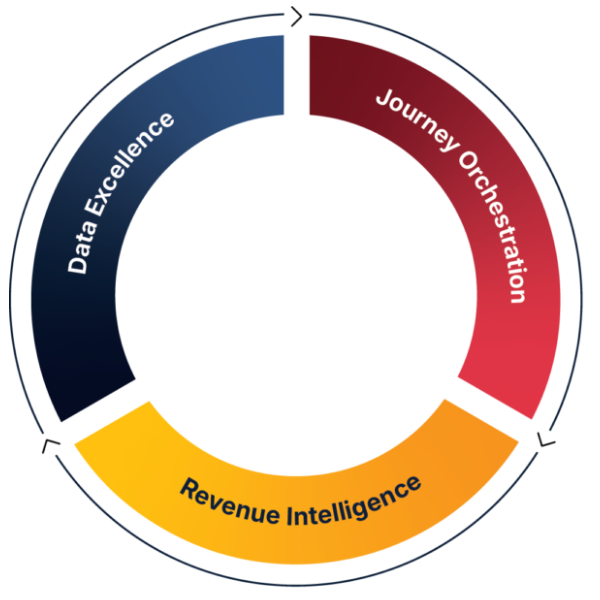
How Adobe Admin Console Governance Fits Into the Revenue Acceleration Loop
For many Marketing Operations teams, the shift to Adobe Admin Console hasn’t just changed how users log in – it has reshaped the foundations of how your marketing engine operates.
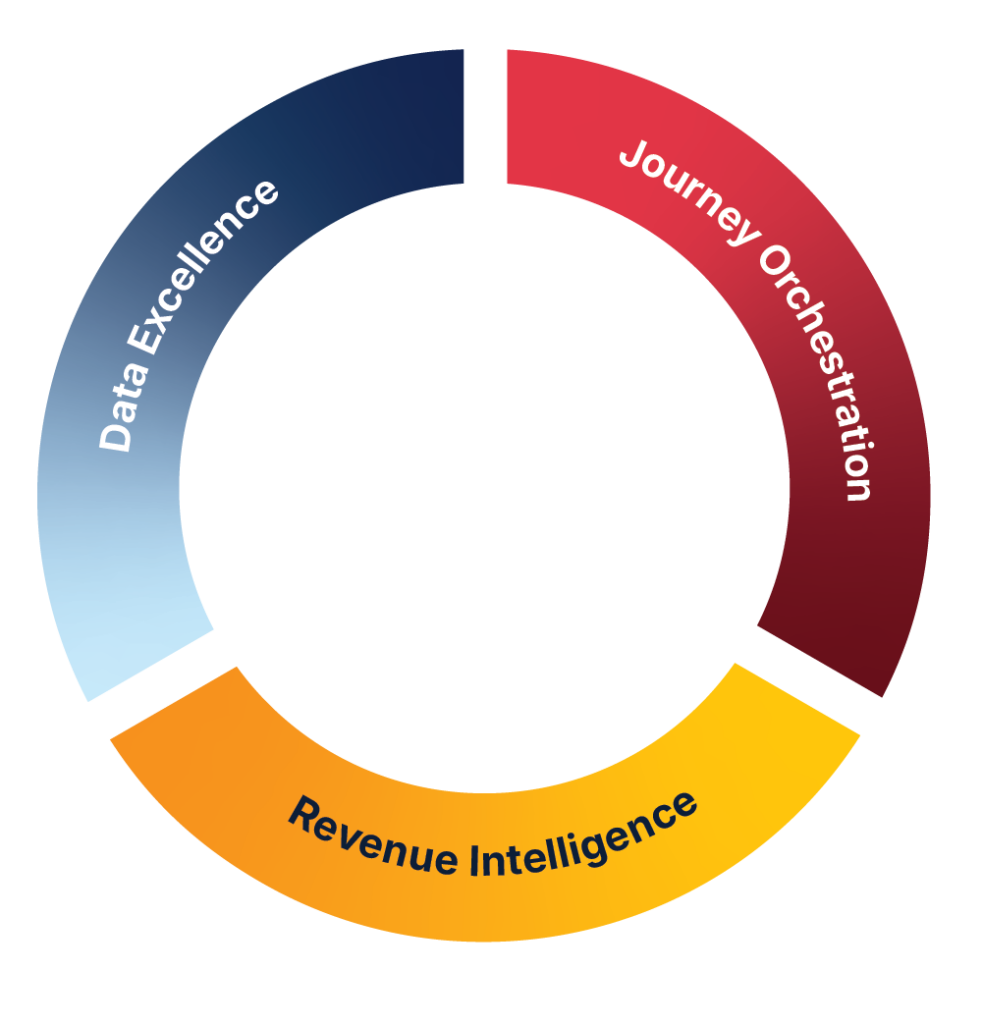
And within the Revenue Acceleration Loop, this isn’t a peripheral concern. It directly affects the stability, scalability, and performance of all three pillars: Data Excellence, Journey Orchestration, and Revenue Intelligence.
Conclusion: Governance and Growth in the Adobe Ecosystem
Building a Foundation for Scalable Growth
The migration to Adobe IMS and the introduction of the Admin Console represent a significant step in formalising how your organization interacts with its core MarTech stack. What might initially feel like cumbersome complexity is, in reality, a necessary framework for enterprise governance.
For B2B marketers, particularly those migrating from legacy systems, intentional configuration is key. By clearly defining who holds the System Admin role, carefully managing your limited pool of Support Admins, and understanding the multi-level delegation inherent in roles like the Workfront Admin, you move away from the reactive troubleshooting trap.
First, establish solid fundamentals to operate securely. This foundation allows for continuous platform expansion. Consequently, technical improvements drive measurable revenue. Finally, define your governance strategy for long-term success.

Take the next step
Speak to someone who gets it
For organizations looking to go deeper, JTF offers a Revenue Strategy Audit designed to help teams understand where performance is being constrained and where improvements can be made.
Connect with Katja on LinkedIn.
Frequently Asked Questions
A System Admin holds the “crown jewels,” managing identities and licenses across the entire organization. System Admins delegate Product Admins to manage access for specific tools. If this hierarchy feels overwhelming, our MarTech Strategy & AI services can help you design a governance framework that keeps your stack secure and efficient.
For security, Adobe only allows existing System Administrators to see the full list of others with the same rank. If you are struggling to find your admin or align your teams, our Marketing Automation experts can help audit your instance and identify the correct stakeholders to streamline your operations.
A Support Admin is a specialized role that allows users to open technical tickets with Adobe. We recommend being highly selective with this role to prevent duplicate tickets and communication gaps. To ensure your team knows how to handle these technical nuances, consider our Adobe Training programs to upskill your Marketing Ops leads.
Workfront requires a “two-tier” approach: access must be granted at both the Product level and the Product Profile level. Managing these layers is critical for project visibility. If you need help optimizing these workflows, explore our Work Management solutions to bridge the gap between your creative and technical teams.