

















A Strategic Shift Towards Marketing Democratization
As a Marketing Operations specialist and consultant, I have spent many years inside Marketo Engage. It remains the powerhouse for lead management and automated orchestration. However, for a long time, the ‘Achilles’ heel’ of the platform was arguably its email creation interface. For years, we relied on modular templates, complex, developer-heavy structures that, while robust, often created a bottleneck between the creative spark and the final send.
Adobe has been listening. The roll-out of the New Email Designer represents more than just a facelift; it is a fundamental shift in how marketing operations teams interact with their primary communication channel.
In this update, I want to take a deep dive into the current state of the New Email Designer, explore the strategic advantages it offers, and provide a candid look at the technical ‘gotchas’ you need to watch out for.
A Commitment to Continuous Improvement
One of the most encouraging signs for any Adobe Marketo user is the cadence of updates. It is no secret that the initial launch of the new designer had its fair share of growing pains. However, Adobe has made it abundantly clear that this is a primary focus area.
We are seeing a consistent stream of monthly updates and bug fixes. This level of attention is critical because it signals to the market that the New Email Designer is not just a secondary feature, but the future standard for the platform. For those who have been hesitant to switch, the stability we are seeing now compared to even six months ago is a testament to the engineering resources being poured into the tool. It is maturing rapidly, moving from an experimental alternative to an enterprise-ready workhorse.
User Experience: Frustration to Flow
When we talk to clients about their transition to the new designer, the feedback is overwhelmingly positive regarding the User Experience (UX).
The previous modular template system, while functional, often felt like ‘painting by numbers’ in a dark room. You were confined by the variables predefined by a developer, and making even a minor layout change often required going back to the code. The new designer flips this script.
The interface is intuitive, following the modern drag-and-drop logic that marketers expect in the 2020s. The ability to see your email take shape in real-time without the lag of the old “Preview” windows has significantly reduced the time-to-market for campaigns. This improved UX doesn’t just make marketers happier; it makes them more efficient. We are seeing campaign execution times drop as teams move away from the clunky variable panes of the past and into a more visual, fluid workspace.
Brand Themes and Content Locking: The Untapped Powerhouses
Two features that I believe are currently under-utilized, yet hold the most strategic value, are Brand Themes and Content Locking.
Brand Themes
Brand Themes allow you to define your brand’s DNA (colors, fonts, button styles, and spacing) at a global level. Initially, Brand Themes were admittedly a bit “buggy”, particularly when it came to inheritance and CSS overrides. However, the majority of these issues have been ironed out.
The versatility here is immense. Imagine a scenario where your brand undergoes a minor identity refresh (e.g., a change in the primary hex code or a new button radius). Instead of updating fifty different templates, a well-structured Brand Theme allows you to push those changes across your assets with significantly less friction. It ensures that the ‘wild west’ of rogue marketing emails is tamed, keeping every communication on-brand.
Content Locking
Content Locking is the unsung hero of brand governance. In larger organizations, you often have decentralized teams or junior members creating emails. Content Locking allows the Platform Owner to lock down specific structures (like headers, footers, or legal disclaimers) while leaving the body copy and images editable. This strikes the perfect balance between creative freedom and corporate compliance.

Download
Master Your Designer Migration
Transitioning to the New Email Designer is more than just a technical switch—it’s a move toward marketing democratization. However, deciding between automated conversion or building from scratch requires a clear strategy to avoid ‘dirty’ code and rendering issues.
Use our Migration Options guide to evaluate the best path for your assets, ensure brand consistency with Brand Themes, and protect your technical integrity during the move.
The Outlook Elephant in the Room
If you spend five minutes in any Marketo user forum, you will see complaints about rendering issues in Microsoft Outlook. It is a common refrain: “The new designer broke my Outlook layout.”
As a consultant, I must be firm on this point: It is not fair to blame the email designer for Outlook’s shortcomings.
Outlook (particularly the desktop versions for Windows) uses the Microsoft Word rendering engine to display HTML. This engine is notoriously outdated and does not support many modern CSS standards. The rendering issues people are seeing in the New Email Designer (padding skips, font substitutions, or alignment quirks) are, in 90% of cases, the exact same issues that existed with the old modular templates.
The difference is that the new designer makes it easier to build complex layouts, and with complexity comes more opportunities for Outlook to struggle. When you build an email, you aren’t just building for a browser; you are building for a fragmented ecosystem of email clients. The New Email Designer does an admirable job of generating ‘Outlook-safe’ code, but it cannot perform miracles on a 15-year-old rendering engine. That being said, this month’s release does promise to optimize the new email designer further to remove some of those remaining Outlook challenges.
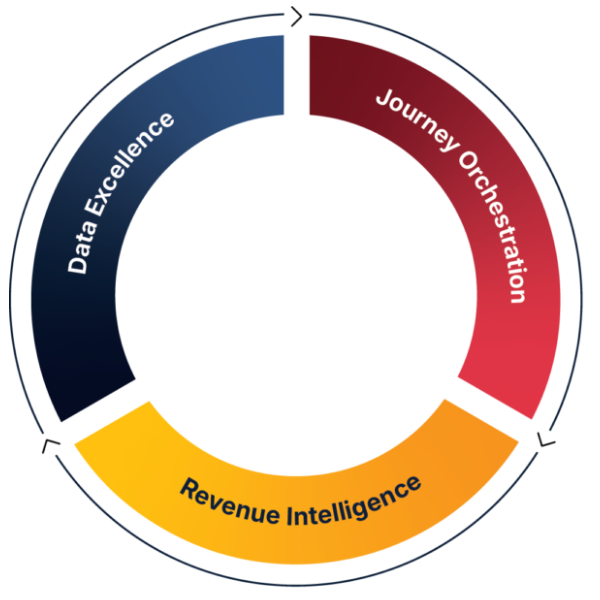
JTF Revenue Acceleration Loop
Does Your Revenue System Support Your Ambition?
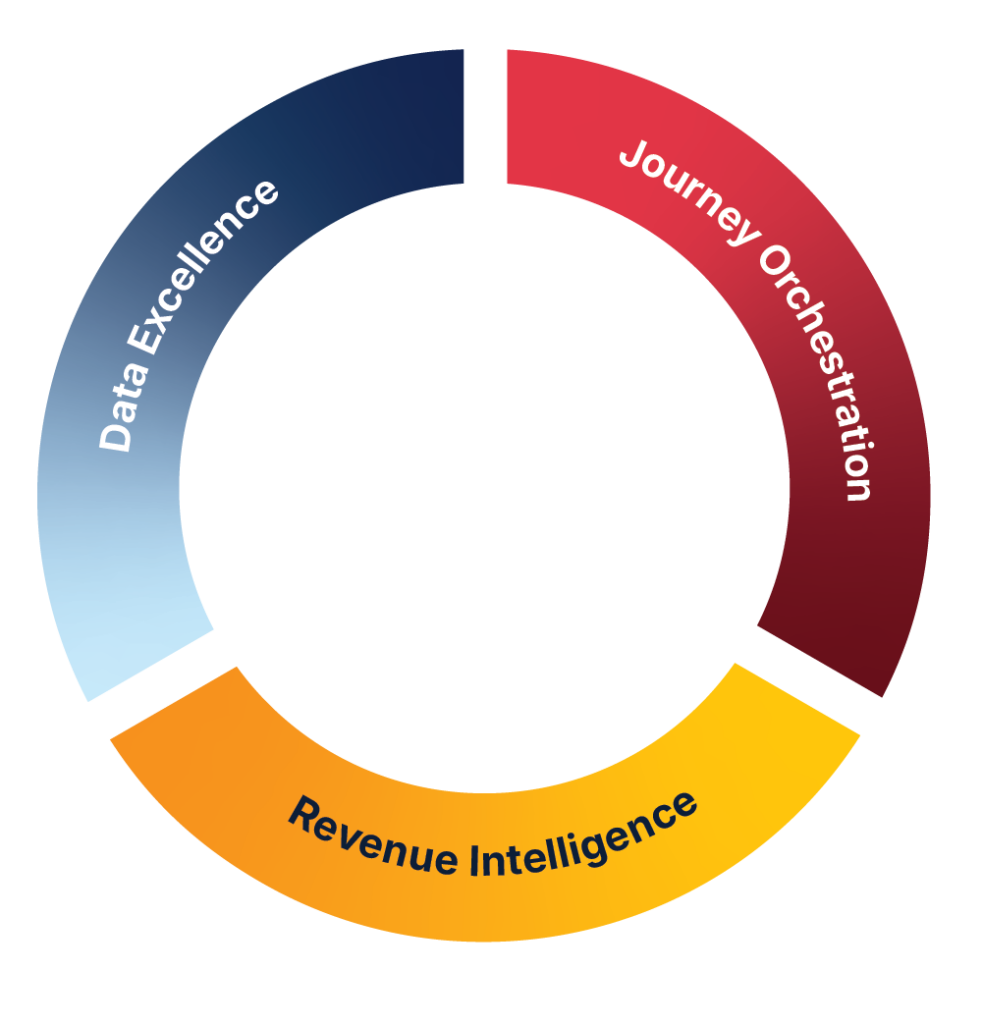
A disconnected stack creates operational friction rather than revenue impact. At JTF Marketing, we help you audit and reconnect your data, orchestration, and intelligence layers to ensure your marketing engine is commercially undeniable.
Navigating the Technical Nuances
While the tool is powerful, there are a few technical nuances that can trip up even experienced Marketo users. Here are two specific examples we frequently encounter at JTF.
The Fragment Padding Trap
Fragments are a fantastic addition, allowing you to save and reuse specific pieces of content. In some ways, they are similar to what we used to know as “snippets”. However, they come with their own internal padding settings. If you take a fragment and drop it into a column within a structure that also has its own padding, you end up with “Double Padding”.
The result? Your email looks sparse and disconnected.
Strategic Advice: For now, we recommend using fragments primarily for important, single-column structures such as headers, footers, or hero sections. If you are building complex multi-column layouts, it is often better to build the structure within the email itself rather than nesting multiple fragments, until you have a firm handle on your padding inheritance
Fallback Fonts and Custom CSS
Brand Themes are excellent for setting primary fonts, but currently, they do not offer a native UI option to add ‘fallback fonts’ (e.g., specifying ‘Montserrat’ but falling back to ‘Arial’ if the user doesn’t have the web font).
There is a clever workaround here. You can add your fallback logic as custom CSS directly into the template.
The Pro-Tip: If you are worried about end-users accidentally breaking this custom CSS, simply apply Content Locking to the template level. This allows the CSS to remain active and protected while the end-user focuses solely on the content they need to change. It’s a sophisticated way to maintain technical integrity without limiting the user’s ability to execute.
To Convert or Not to Convert?
When migrating from old modular templates to the new designer, Adobe offers conversion tools and an image-to-HTML converter. I will be blunt: I am less than impressed with the results of these automated conversions.
The conversion process often produces ‘dirty’ code – unnecessary nested tables and fragmented CSS that can lead to the very rendering issues we discussed earlier. Similarly, the image-to-HTML tool often requires so much manual fixing and ‘massaging’ of the code that you end up spending more time troubleshooting than you would have spent starting from scratch. Because the UX of the new designer is so intuitive, my recommendation is almost always to build from scratch. You can recreate a complex modular template in the new designer in a fraction of the time it used to take to code one. By building fresh, you ensure the underlying HTML is clean, modern, and fully optimized for the new editor’s features.
The ‘Custom HTML’ Debate: Missing the Point
A frequent question from the more developer-oriented corners of the Marketo community is: “Why can’t I just edit the full HTML of the email within the designer?”
I believe this question misses the fundamental purpose of a WYSIWYG (What You See Is What You Get) editor. The New Email Designer is designed for speed, reliability, and democratization. It is meant to allow a marketing manager to build a high-quality, responsive email in 20 minutes without touching a line of code.
For those who require total control over every tag, Marketo still offers the option to import ready-made HTML code. Furthermore, API access for the new designer is on the horizon, which will open up even more automation possibilities. It will be interesting to see how the new “Expert Mode” will open up the editor for minor HTML changes later this month. However, there will always be a market for third-party tools like Knak or Stensul. These platforms are specialists in bespoke, highly customizable email creation and can push those designs into Marketo. If your brand requires “pixel-perfect” artistic layouts that push the boundaries of email design, those tools remain relevant. But for the vast majority of B2B lead generation and nurture programs, the native Marketo designer is now more than sufficient.
Current Frustrations and the Road Ahead
No tool is perfect, and there are still areas that feel a bit ‘clunky’.
One of the main pain points is the sharing of folders across workspaces. In a large enterprise instance with multiple partitions, the inability to easily share assets or fragments can lead to a lot of duplication of effort.
Additionally, the complexity of editing Brand Themes is a slight hurdle. Currently, Brand Themes are primarily accessible through the email templates rather than as a standalone element in the Design Studio. This feels a bit counter-intuitive; you have to enter a template to change the global theme.
Finally, the dark theme translation of the color palette also leaves room for improvement. When creating your brand theme, it is worthwhile having a look at how it translates.
The good news? These items are firmly on Adobe’s backlog. Given the pace of development we’ve seen recently, I expect significant improvements in these administrative areas in the coming quarters.
Conclusion: The Time to Switch is Now
For organizations still clinging to modular templates built by developers years ago, the message is clear: It is time to make the move.
The New Email Designer is not just an aesthetic upgrade; it is a tool for democratization. It removes the dependency on external developers or internal technical bottlenecks. It empowers the people closest to the customer, the campaign managers and content creators, to build and iterate with speed.
While there are nuances to learn (such as fragment padding and CSS workarounds), the benefits of improved UX, Brand Themes, and Content Locking far outweigh the learning curve. You will find your team is more agile, your branding is more consistent, and your campaign execution is significantly smoother.
At JTF, we have helped numerous clients navigate this transition, from setting up robust Brand Themes to training teams on the new workflow. If you are looking to unlock the full potential of your Marketo instance and move away from the constraints of the past, our experts are more than happy to help you map out your migration strategy.
The era of the developer-dependent email is ending. The era of the empowered marketer has arrived.
What’s next for Marketo?
The New Email Designer is just one piece of the puzzle. If you want to see the full 2026 roadmap – including the new Agentic AI features – join us on May 5 for our Adobe Roadmap Update & Strategy Session. We’ll help you turn these announcements into a clear plan for your team. Save your seat here
Take the next step
Want to learn more about optimizing your Marketo instance?
Contact the team at JTF today for a deep dive into your B2B Customer Journey.
Connect with Katja on LinkedIn.
Frequently Asked Questions
Outlook (desktop versions for Windows) uses the Microsoft Word rendering engine, which does not support many modern CSS standards. While the New Email Designer generates “Outlook-safe” code, the complexity of modern layouts can still trigger rendering quirks like padding skips or font substitutions in Marketo Engage.
Fragments have their own internal padding settings. If you place a fragment inside a structure that also has padding, you create “Double Padding,” making the email look sparse. It is recommended to use fragments for single-column structures like headers and footers until you master padding inheritance.
It is generally recommended to build from scratch. Automated conversion often produces “dirty” code and nested tables that cause rendering issues. Because the new UI is so intuitive, recreating a template manually is often faster and results in cleaner, more optimized HTML to streamline work management.
Currently, the UI does not natively offer a fallback font option. However, you can add fallback logic (e.g., ‘Montserrat’ falling back to ‘Arial’) via custom CSS at the template level and use Content Locking to protect it from being edited.
Content Locking allows platform owners to secure specific elements like headers, footers, and legal disclaimers. This ensures brand compliance and corporate governance while still allowing junior team members the freedom to edit body copy and images.